A brand guide is the rulebook for how your brand looks. It's what lets a new designer, a printer, a freelancer, or your own team make something that looks like you, without asking you about every detail.
For a long time that rulebook was a PDF, or maybe a page on a website. Those still matter. But more and more design and writing is done with AI now. An AI tool can read a PDF, but it can misread a color value in a picture, and it can't pull a usable logo out of one. It needs the same rules written out as text, with exact values and the real files.
We just went through all of this ourselves. We finished our rebrand in October 2026, then turned our brand guide into files our AI tools read every day. So this guide uses our own brand as the example for each part, then goes under the hood on how we made it AI-friendly.
1. Your logo, in every version you'll need
One logo file isn't enough. Your logo has to work in a website header, on a business card, as a social profile photo, on a dark background, and in a tiny browser tab. A brand guide should include every version you'll need:
- Arrangements. A horizontal version, with the symbol next to the name, for headers and wide spaces. A stacked version, with the symbol above the name, for square spaces.
- Parts on their own. The symbol by itself, for small spaces like profile photos and browser tabs. The name by itself, for places where the symbol would be too small to read.
- Colors. A full-color version, an all-white version for dark backgrounds, and an all-black version for one-color printing.
- Files. SVG for websites and design tools, PNG with a transparent background for documents and slides, and PDF or EPS for print. Name each file for what it is, like logo-horizontal-white.svg, so nobody has to open ten files to find the right one.
Our logo is a whale (the logomark) and the word Mainsplash (the wordmark). They can go together, side by side or stacked, or apart.
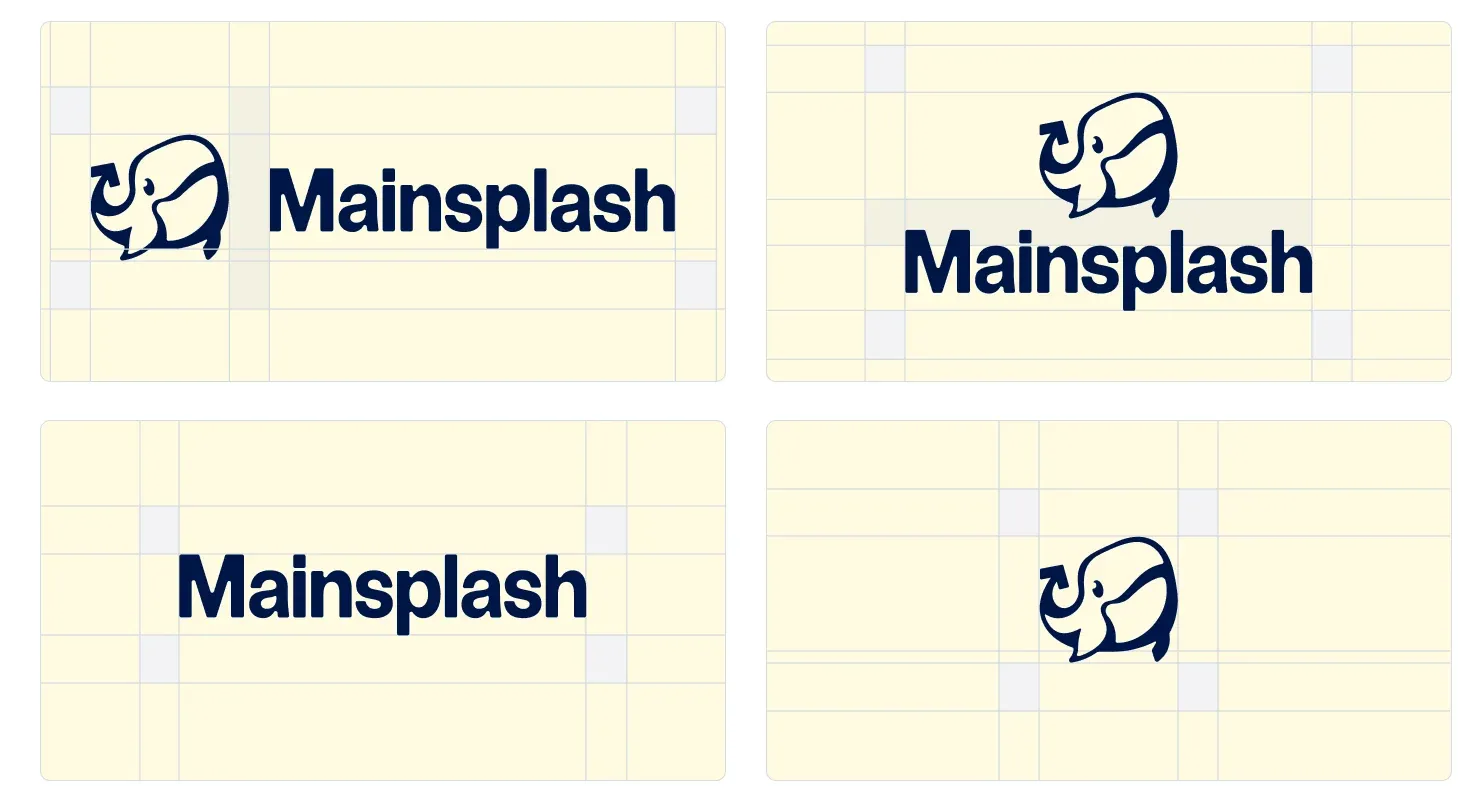
Our full-color logo is actually one color, Midnight Ocean. That's common, and it's fine. What matters is deciding which version goes on which background. Ours goes on our cream color or white, and on Midnight Ocean we use a light version where the whale keeps its cream fill, so its details don't disappear.

Two more rules belong with the logo:
- Clear space and minimum size. Say how much empty space has to surround the logo and how small it can go. Ours needs clear space equal to the height of the "a" in the wordmark, and the whale never goes smaller than 20 pixels on screen or a quarter inch in print.
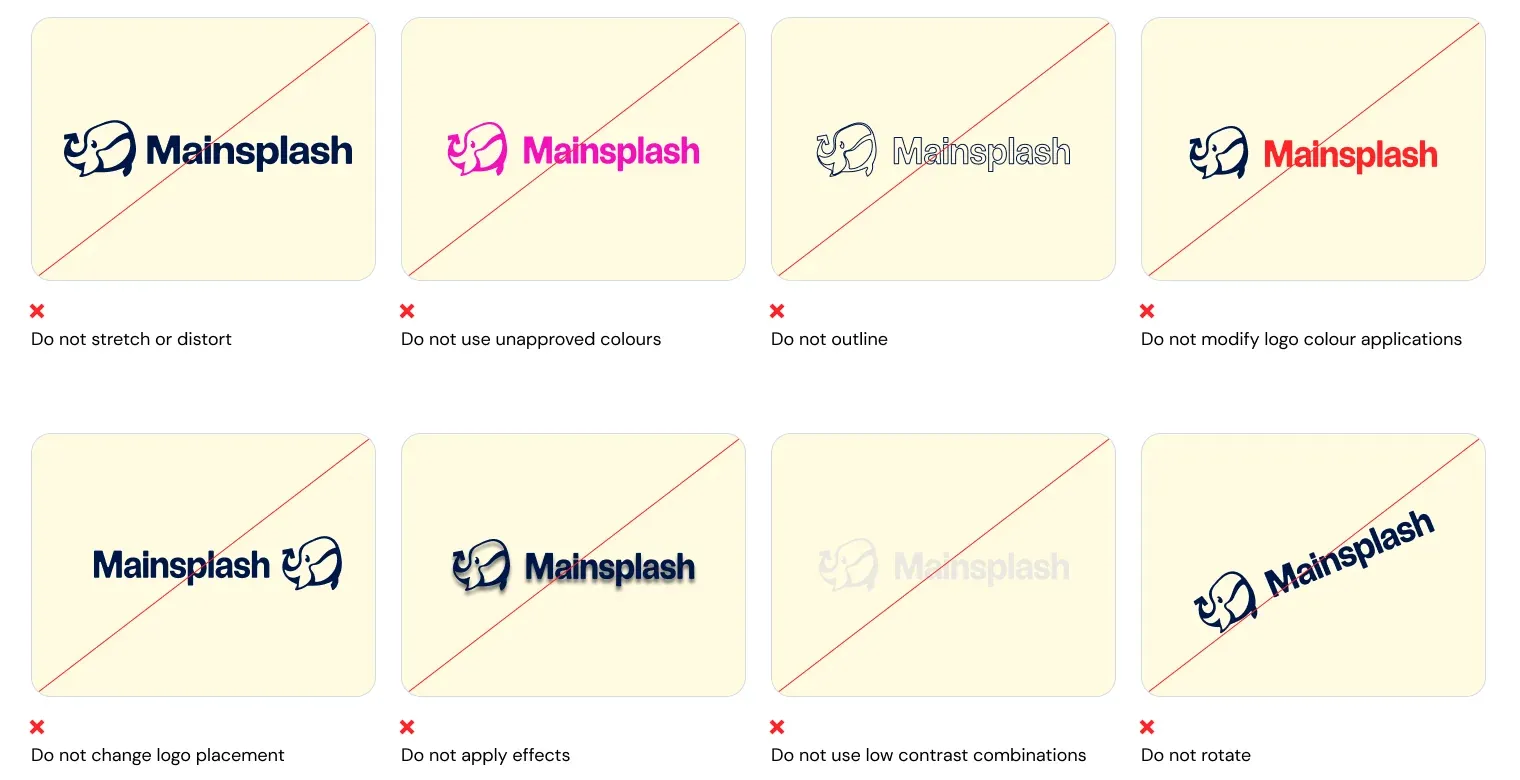
- What not to do. Show the mistakes people actually make. One picture of a stretched logo does more than a paragraph of rules. Our guide shows eight: don't stretch it, recolor it, outline it, change the colors of its parts, move the whale, add effects, put it on a low-contrast background, or rotate it.
If you work with partners, include a version for that too. Ours puts the partner's logo next to ours, both in black or white, with one and a half times our clear space between them.
2. Typefaces: two is usually enough
Most brands need two typefaces, sometimes three. One is a display font for big moments: headlines, signs, the first thing someone reads. The other is a readable font for everything else: paragraphs, captions, forms. Any more than that and a brand starts to look busy, and every design decision gets harder.
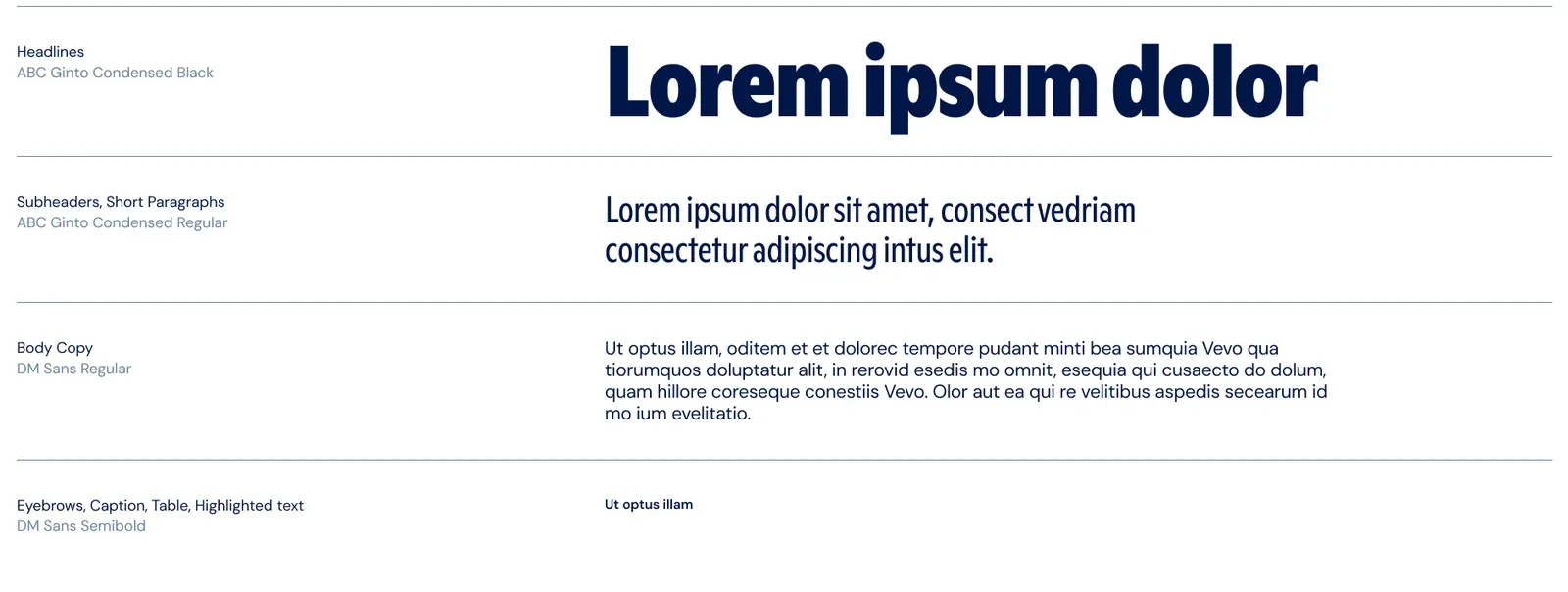
Ours are ABC Ginto Condensed for headlines and DM Sans for reading. Ginto is narrow and loud, which suits a bold brand. DM Sans is easy to read at small sizes.
For each typeface, include:
- Where each weight goes. Our headlines are Ginto Condensed Black, subheads and short paragraphs are Ginto Condensed Regular, body text is DM Sans Regular, and captions and tables are DM Sans SemiBold.
- Sizes and spacing. Our rule: the bigger the type, the tighter the lines. Headlines are set tight, and body text gets room to breathe.
- Where to get the fonts and what the license covers. A font licensed for your designer's computer isn't automatically licensed for your website, your app, or your social posts. When we bought Ginto, we got the desktop, web, social media, video, and app licenses. They cover our team and the designer who made our brand, so our brand files note that any other freelancer needs their own license. DM Sans is free to use anywhere.
- A fallback. Name a common font to use where yours isn't available, like in an email.
3. Colors: a defined palette, with rules for using it
A palette is more than a row of swatches. Give every color:
- A name people can say. "Coral", not "the red one".
- Exact values for everywhere it's used. HEX for websites, RGB for screens, CMYK for print, and a Pantone number for printing in that exact ink.
- A role. Which colors you use most, and which are extras for variety.
Ours has four primary colors: Sea Foam, a warm cream that works as our paper; Coral, our signature color; White; and Midnight Ocean, for type and the logo. Fifteen more colors (yellows, blues, greens, reds, purples, and two grays) add variety.
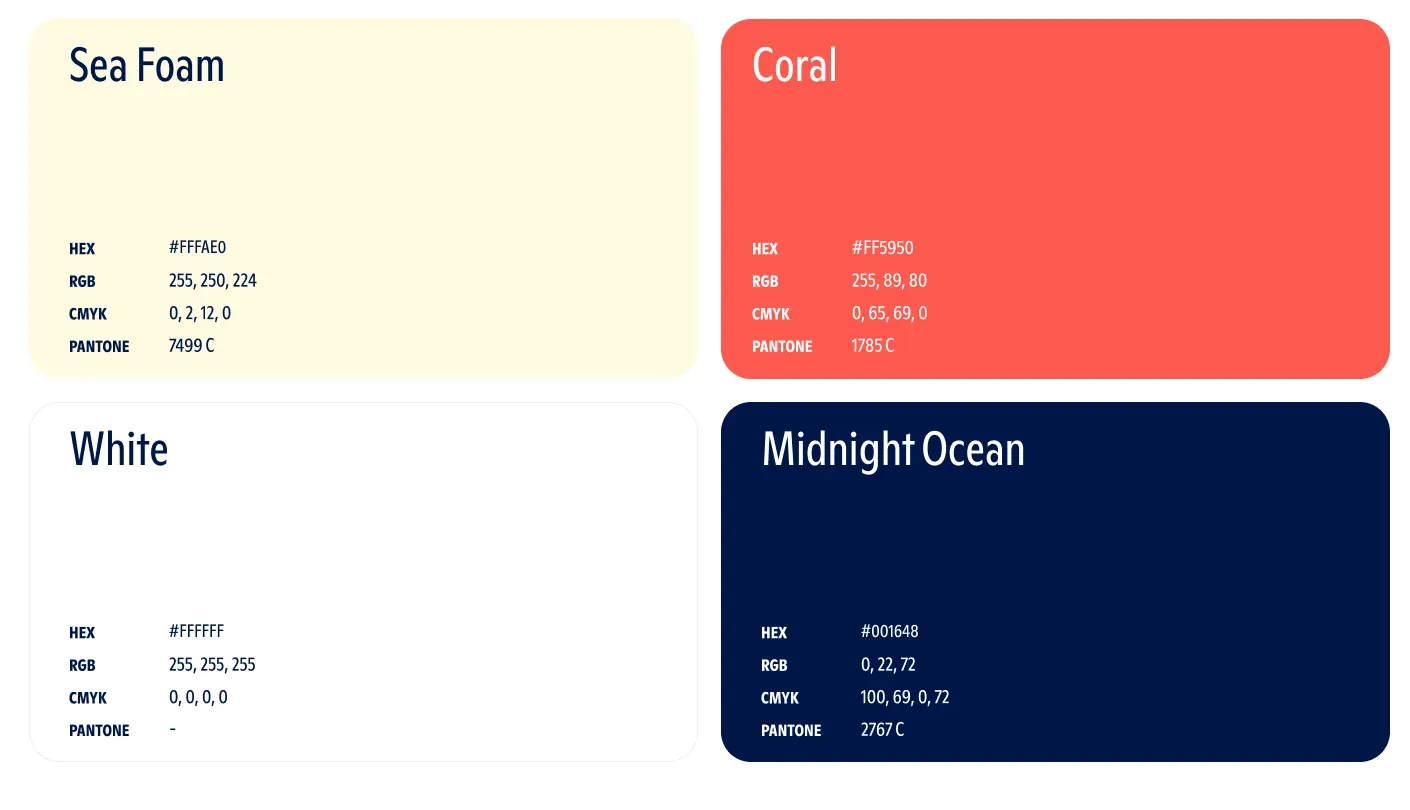
Then write the rules for using them. Two of ours:
Pairings. Each pairing is a base color, a lighter tone of it for patterns and backgrounds, and a contrasting accent for the logo, type, and details. Coral goes with a lighter Coral Ripple and Midnight Ocean, for example.
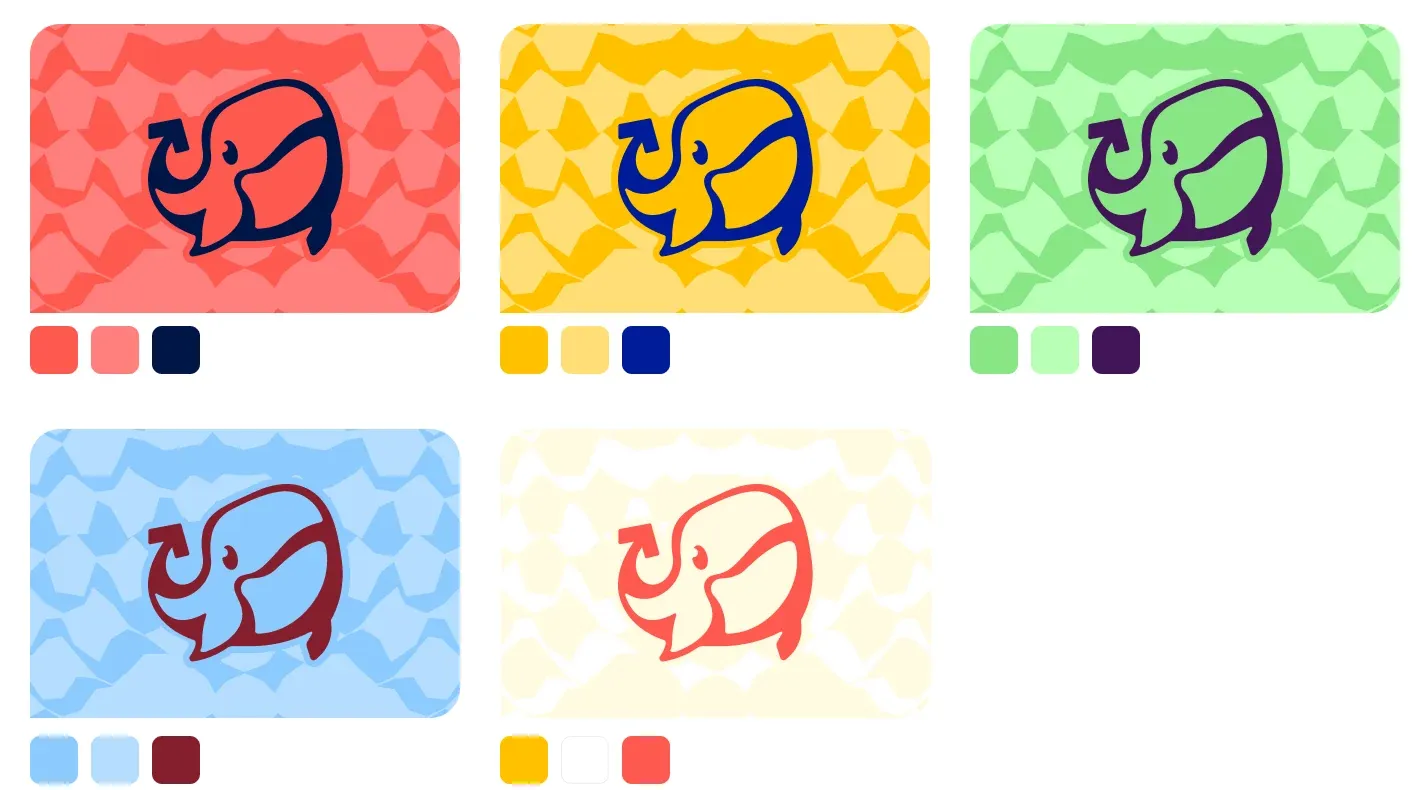
Contrast. Text has to be easy to read on whatever's behind it. We learned this on our own homepage. The light service colors from our social covers looked great as decoration, but as text on Sea Foam they were hard to read. So on the website, the color went on the outlines and icons, and the words stayed Midnight Ocean. Our buttons follow the same rule: Coral with Midnight Ocean text has a contrast ratio of 5.6 to 1. White text on Coral is only 3.1 to 1, under the 4.5 to 1 that the web accessibility guidelines (WCAG) set for regular-size text.
4. Illustrations: show a family, not a single drawing
If your brand uses illustrations, describe the style in words, then show several finished examples. Words like "playful" and "bold" mean different things to different people. Three or four finished illustrations show the line weight, the colors, the amount of detail, and the kinds of subjects. That's what lets the next designer, or an AI tool, draw a new one that fits the family.
Ours have expressive shapes, bold colors, and slightly irregular outlines. Small gaps between the color fills make them look a little misaligned, like old printing, and that's on purpose.

We've since drawn illustrations for all ten of our services and every guide on our site, each matched to these examples. One lesson: our first new drawings looked fine small and rough up close. Check every new illustration at full size, right next to the originals.
5. Icons: a grid and a stroke weight
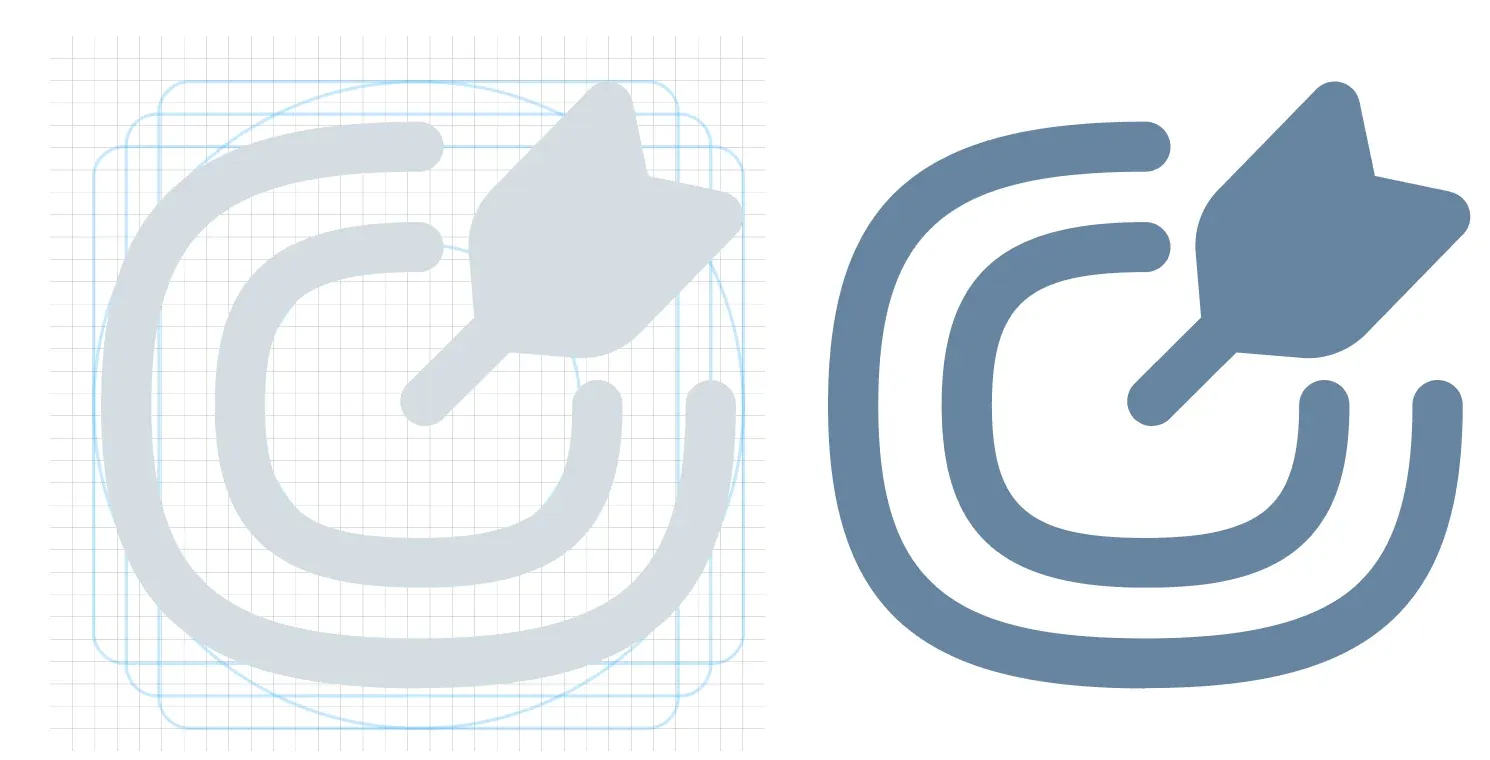
Icons need tighter rules than illustrations, because they're small and they appear in sets. Define the grid they're drawn on, the stroke weight, the corner style, and the file format.
Ours are drawn on a 32 by 32 pixel grid with a 1.5 pixel stroke, using soft, oval shapes taken from the whale, so they feel related to the logo. We keep each icon as its own SVG that takes its color from wherever it's placed, so one file works in any brand color.
6. Photos and images
Photos need a style too, or every image will look like it came from a different company. Decide what you show (real people, real work, real products), how it's framed, and how it's treated.
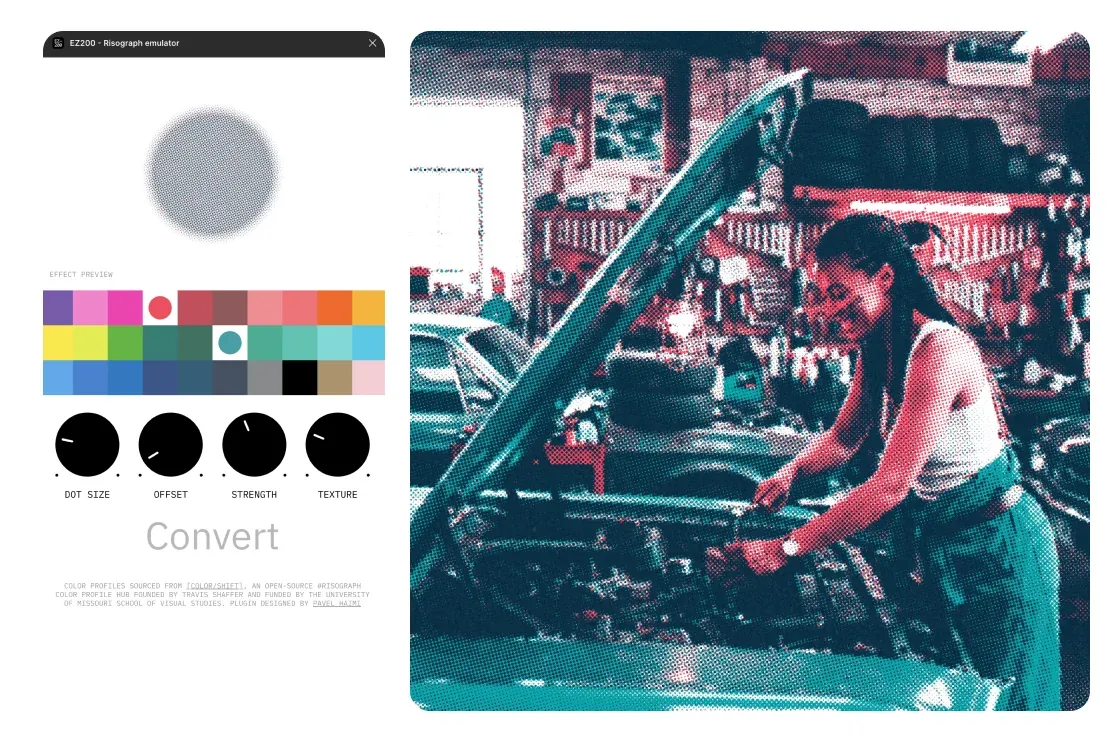
Ours get a risograph treatment: grain, halftone dots, and layered color from our palette, made with a Figma plugin called EZ200 Risograph Emulator. It ties any photo back to the brand. The photo of our founder, Jeremy, on our About page got the same treatment.
7. Show it in use
Finally, show the brand applied: a social cover, a business card, a slide, a web page, a sign. Examples answer the questions rules don't. Ours includes social covers, a pitch deck, business cards, stickers, and posters. Parts of our website came straight from them: the service pills on our homepage started as the tags on our social covers.
8. Turn your brand guide into files AI can use
A PDF or a design file is made for people to look at. AI tools need something else: the rules written out in plain text, exact values they can copy instead of guessing, and the actual files. Give them that, and an AI tool making a social post or building a web page can use your real colors and fonts, not close-enough ones.
Here's what's in our brand folder, and what each part is for.
A written version of the guide. Markdown is plain text with a little formatting. AI tools read it easily, and many of them use it for their own instruction files. Our guide is a 42-slide deck, and our written version is one file, BRAND.md, in the same order. Every rule is written out in words, with exact values, quotes from the original, and the slide each one came from. It also records what the guide left unclear (two slides list different Pantone numbers for Coral) and decisions we've made since, so nobody has to guess. Here's part of its logo section, shortened:
## Logo

**Color** (slides 11-13):
- Preferred: Midnight Ocean on Sea Foam or white.
- On Midnight Ocean, use the Sea Foam wordmark. The logomark must
  use "the approved version with its cream fill and outline".

**Minimum size** (slides 7, 9):
- Logomark: 0.25" wide in print, 20 px on screen.

**Clear space** (slide 10): equal to the "a" of the wordmark
("1x = a"), around every arrangement.
Exact values in a data file. Every color with its name and its HEX, RGB, CMYK, and Pantone values, plus the pairings and fonts, in a file called tokens.json. Our website uses the same color names, so "Coral" means exactly the same thing in the guide, in the code, and in an AI tool's instructions. Here's Coral, with both Pantone numbers written down:
"coral": {
  "name": "Coral",
  "hex": "#FF5950",
  "rgb": [255, 89, 80],
  "cmyk": [0, 65, 69, 0],
  "pantone": "1785 C (slide 22) / 178 C (slide 23)",
  "note": "Signature brand color"
}
The real files, each with a README. Every logo version, icon, and illustration is its own SVG, named for what it is, with a short README in each folder that says which file to use where. An AI tool can't use a logo it has only seen in a screenshot.
Pictures of the guide itself. We saved an image of every slide, so an AI tool that can see images can check things like the logo misuse examples.
Rules that keep growing. When feedback on new work turns into a rule, we write it down with the date and the reason. Our rules for video started as a few notes on our first guide video and now number over twenty, each with a short ID so it can be referenced. One of them: everything on screen stays up long enough to read.
Instructions that point to all of it. None of this helps if the AI never opens it. Most AI tools let you set project instructions: a CLAUDE.md or AGENTS.md file for coding tools, or project instructions and files in Claude and ChatGPT. Ours tell every tool that brand work starts with BRAND.md, which files are the real ones, and what not to do, like making up colors or redrawing the logo. For jobs that come up again and again, like motion design, we also use skills: short sets of instructions an AI tool loads when that kind of job starts.
To do this for your own brand:
- Gather everything. The PDF or design file, the logo package, the fonts, and any examples.
- Write the guide out in markdown, section by section. AI can write the first draft from your PDF, but check every value against the original, because a wrong color code gets copied everywhere. We read ours straight out of the design file and checked every printed HEX value against the actual swatch. All 19 colors matched.
- Put the values in a data file, and use the same names everywhere: the guide, the website, and the instructions.
- Export every logo version, icon, and illustration as its own file, and add a README to each folder.
- Point your AI tools at it with project instructions. Clear instructions matter here just as much as they do for writing with AI.
- Keep it current. When a decision changes, update the files the same day.
If you only do five things
- Make every logo version you'll need, with clear space, a minimum size, and the mistakes to avoid.
- Choose two typefaces, one for headlines and one for reading, and check the licenses.
- Name every color, give it exact values, and write rules for pairing and contrast.
- Show your style with several finished examples of illustrations, icons, and photos.
- Turn it into files AI can read: a written guide, a data file of values, and the real assets.
Mainsplash can do all of this for you.
Start with a free, 1-page marketing plan.